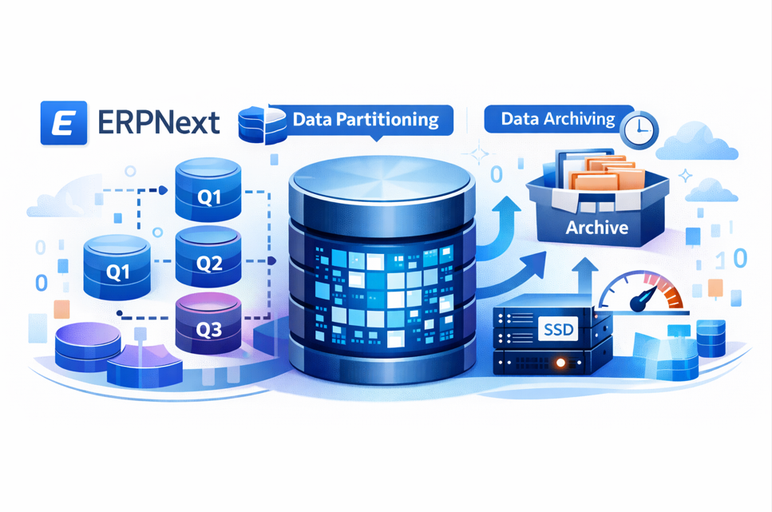
1. ERPNext & Frappe Architecture Overview
Database Layer & ORM: ERPNext is built on the Frappe Framework and primarily uses a relational database (MariaDB/MySQL by default) to store all data. Each DocType in Frappe corresponds to a database table (prefixed with tab) created when the DocType is defined[1]. Frappe provides an ORM layer that allows developers to interact with these tables as Python objects (Documents) instead of writing SQL queries directly[1][1]. Every record has a primary key called name (often a string or auto-increment series) which uniquely identifies it in the table[1]. The Frappe ORM ensures that creating, reading, updating, and deleting documents in code will execute the necessary SQL under the hood[1]. This abstraction makes the app largely database-agnostic at the code level, although in practice MariaDB has been the standard backend (PostgreSQL support in ERPNext is still limited as of v15/v16).
Migrations and Schema Evolution: ERPNext undergoes frequent schema changes with version upgrades (e.g. new fields, changed field types, new tables for new DocTypes, etc.). Frappe uses a migration system to handle these changes. When you update ERPNext to a new version, you run bench migrate which applies all pending schema changes and data patch scripts to bring the database in sync with the new code[2]. This process will add/modify columns or tables as defined in the DocType JSON metadata and run any patch scripts to migrate existing data as needed[2][2]. Notably, Frappe does not support reverse migrations – once you upgrade and the schema is changed, there is no built-in way to downgrade the database schema[2]. This means backward compatibility is limited: after an upgrade, the database is tailored to the new version and the old ERPNext code might not function with it. In practice, major version upgrades (v14 → v15 → v16) involve one-way migrations, and downgrading would require restoring from backup rather than rolling back in-place. The project follows semantic versioning where major releases include breaking changes, minor releases add features (usually backward-compatible), and patches fix bugs[3]. Each major ERPNext version has a limited support lifecycle (generally around 2–3 years), with only the last two major versions officially supported at a time[4]. For example, ERPNext v14 is planned EOL by end of 2025, and v15 by end of 2027[4]. This implies that enterprises may need to upgrade at least every few years, and they should design archiving solutions that don’t rely on running indefinitely on an obsolete ERPNext version (for security and support reasons).
Multi-Tenancy vs Multi-Database: By design, Frappe is multi-tenant – you can host multiple sites on one server, where each site has its own database and data directory[5]. All sites share the same codebase (apps) but their data is isolated at the database level[5]. This is great for serving multiple companies or subsidiaries on one infrastructure, but it means each site’s database is self-contained. There is no native support in Frappe for a single site querying across multiple databases. Within one site, the app expects one primary database connection that contains all the DocType tables for that site. You cannot configure an ERPNext site to automatically pull some DocTypes from one database and others from a different database – such cross-database access must be custom-built (and is generally not recommended). In summary, ERPNext’s architecture expects all operational data for a site in one database, and any archiving to a separate DB would essentially mean treating that archive as another site or an external data source.
Native Limitations (Partitioning, Archiving, Compatibility): Out of the box, ERPNext (as of v15/v16) does not include built-in features for table partitioning or automated data archiving to another storage. The Frappe ORM and migration system are built around standard tables. If you implement custom SQL features like partitioning at the database level, the framework won’t be aware of it – which is doable but you must manage it manually (more on this in Section 2). Archiving old records is not a one-click feature in ERPNext; typically, users rely on backups or manually deleting data if needed, but there is no official archival module that moves data to cold storage. In community discussions, users have confirmed that they had to devise custom archiving solutions since there is no standard method provided[6][6]. Another limitation is backward compatibility in terms of running legacy code: once you migrate to a new ERPNext version, you cannot run the old version’s code on the upgraded database[2]. Thus, organizations with long-term data often face a dilemma – either keep an old version running for historical data or migrate that data forward (each approach has pros/cons, discussed in Section 7). Finally, ERPNext doesn’t natively support “federated” queries or connecting live to two databases at once (aside from replication setups for scaling reads). All these factors mean that implementing partitioning, archiving, or legacy data access requires careful planning and possibly custom tooling on top of ERPNext’s core.
2. Data Partitioning Strategy in ERPNext
Partitioning Concepts: Database partitioning involves splitting a large table into smaller, more manageable pieces while retaining the table’s logical structure. There are two main forms:
- Horizontal Partitioning: dividing rows among multiple partitions (each partition contains a subset of rows, typically based on a key like date or an ID range). Each partition can be thought of as a separate table behind the scenes, but to the application it’s one table. For example, you might keep older years’ data in separate partitions of a ledger table – essentially “sharding” the table by date range[6][6]. In MySQL/MariaDB, native table partitioning is a form of horizontal partitioning where the DBMS manages multiple physical partitions of one table[6]. Another example outside the DB engine would be having separate tables for each year and using a view or union to query them together (manual horizontal partitioning). Horizontal partitioning is literally like “archiving off old data to a separate dataset, but linked to the main database so it’s still available”[6].
- Vertical Partitioning: dividing columns among multiple tables (each partition contains a subset of columns). For instance, you might split a wide table into two tables with a one-to-one relationship, storing infrequently-used or sensitive columns in a separate table. This is less common in ERPNext context, because it complicates the ORM usage. Vertical partitioning is essentially normalization taken further – splitting even already normalized tables by columns[7]. A typical use-case might be to separate large text/blob fields or archival logs to another table to keep the main table narrow for performance[7]. In ERPNext, vertical partitioning might appear in patterns like storing document attachments in a separate file storage or moving certain logs out of the primary tables. However, our focus here is primarily on horizontal partitioning (by rows) since the goal is to manage large volumes of transactions over time.
Range Partitioning (e.g. Yearly): Among partitioning schemes, RANGE partitioning on a date field is very suitable for ERP data. This means each partition holds rows within a certain date range (for example, a fiscal year or a month). If we partition by year, we might have partitions named p2019, p2020, p2021, ... where p2019 contains all rows with, say, posting_date < '2020-01-01', p2020 contains dates in 2020, and so on. New partitions are added as new years come, and old ones could be dropped for archival. Range partitioning on dates aligns with financial periods and retention policies. Monthly partitions are finer-grained: e.g., 12 partitions per year (Jan, Feb, ...), which could be useful if a year’s data is extremely large. Monthly partitions enable dropping one month at a time if needed and potentially slightly better pruning for queries that target specific months. The trade-off is having more partitions to manage (and note that too many partitions – thousands – can introduce overhead). Yearly partitions are simpler to maintain and usually sufficient for most ERP use cases, dividing data by fiscal year.
Which ERPNext Tables to Partition: Not all tables benefit from partitioning. We should target the largest and fastest-growing transactional tables, especially those that are primarily accessed with date filters. Key candidates in a large ERPNext installation include:
- General Ledger (GL) Entry – this table (
tabGL Entry) records every accounting ledger posting (journal entries, invoice impacts, payments, etc.). In a high-volume system (banks, large businesses), GL Entry can accumulate millions of rows over years. It is typically queried by date ranges (for financial reports, audit queries). Partitioning by posting date (year or month) would confine most queries to recent partitions and allow quick dropping of very old entries if needed. - Stock Ledger Entry – similar to GL, but for inventory movements. Large retail or manufacturing setups generate huge stock transaction logs. Partitioning by date can improve inventory valuation and stock balance report performance by pruning old data.
- Sales Invoice / Purchase Invoice / Payment Entry – these document tables hold transactional records. They might be slightly less heavy than ledger tables because there’s usually one GL Entry per invoice item, meaning GL entries can outnumber invoices. However, if the company does tens of thousands of invoices per day (e.g. POS receipts), those tables can also become large. Partitioning them by posting date (or invoice date) could help, though one must consider that these DocType tables often have associated child tables (like invoice Item rows) – for simplicity, one could partition the main doctype table and possibly its child table similarly.
- Communications/Email and Activity Log tables – not mentioned in the question, but ERPNext systems also accumulate logs (e.g.,
tabCommunicationfor emails/notes,tabVersionfor document version history). These can grow large and aren’t always needed for quick access. Partitioning or purging those could be beneficial. For instance,tabVersion(doc change history) can become large; one forum case showed slow queries ontabVersionuntil indexes were added[6][6]. Partitioning could be another way to manage such logs by date.
Why Not Partition Master/Setup Tables: Master data tables (like tabItem, tabCustomer, tabAccount, etc.) generally are much smaller and are not growing at the same rate as transactional logs. They also often need to be joined or referenced without a date context. Partitioning them would add needless complexity with no real benefit – for example, splitting tabCustomer into partitions by first letter or ID would not speed up queries significantly, since those tables usually have only tens of thousands of rows at most, which an index can handle easily. Moreover, certain technical limitations apply: MySQL/MariaDB partitioning requires that every unique key includes the partition key[8]. Master tables usually have a primary key of name (which is not a date), and adding a dummy partition key could violate that rule. You could partition by something like customer creation year, but it’s not a typical access pattern (we rarely query customers by creation year). Setup tables (like tabCompany, tabUser, tabRole) are even smaller and absolutely should not be partitioned. In short, focus partitioning on heavy transactional tables where data is naturally stratified by time or another criterion.
Partition Pruning Mechanics: The primary performance gain from partitioning is through partition pruning. This is when the database engine can skip entire partitions of data that are irrelevant to a query, instead of scanning the whole table. For pruning to work, the query’s WHERE clause must involve the partition key (e.g., the date or year). For example, if tabGL Entry is partitioned by year on posting_date, a query for fiscal year 2025 (WHERE posting_date BETWEEN '2025-04-01' AND '2026-03-31', assuming April–March fiscal year) will cause the optimizer to read only the 2025 partition (and 2026 if the range overlaps) and ignore all other partitions[9][9]. The MariaDB documentation explains that if the WHERE clause relates to the partitioning expression, the optimizer “knows which partitions are relevant for the query” and “other partitions will not be read”[9]. This is automatic. You can actually see which partitions a query touches by running EXPLAIN PARTITIONS <query> – it will list the target partitions in the plan[9][9]. This confirms that, say, a report on 2023 data is only scanning the 2023 partition (plus maybe a partial of 2024 depending on date boundary), which drastically reduces I/O compared to scanning an index over 10 years of data.
Indexes and Partitioning Interaction: Indexes still function within each partition. In fact, data and indexes are partitioned together – each partition has its portion of the index[10]. This means an index on posting_date or other fields exists separately in each partition. One important MySQL/MariaDB rule is that the partition key must be part of every PRIMARY or UNIQUE key on the table[8]. This often forces some adjustments: for example, tabGL Entry primary key is likely the name (a hash or series). If we partition by date, strictly speaking we should include posting_date in the primary key or create a separate unique index including it (to satisfy the engine’s requirement). A workaround is to drop any unnecessary unique constraints or rely on the fact that name is unique globally and just add a non-unique partition key. In practice, many have partitioned Frappe tables by making the primary key (name) non-unique or by adding a composite key. It requires caution, but it’s doable (some have switched to numeric auto-increment keys to help partitioning).
Also note, foreign keys are not supported on partitioned tables in MySQL/MariaDB[8] – but ERPNext doesn’t use SQL foreign key constraints for DocType relationships (it relies on application logic and link fields), so this is usually not a blocker. Just be aware: if a table had a foreign key referencing another, you’d have to drop that constraint to partition the table[8].
SQL Examples & Best Practices: To illustrate, suppose we want to partition the GL Entry table by fiscal year. If we assume fiscal year = calendar year for simplicity, an SQL DDL statement could be:
ALTER TABLE `tabGL Entry`PARTITION BY RANGE (YEAR(posting_date))(PARTITION p2019 VALUES LESS THAN (2020),PARTITION p2020 VALUES LESS THAN (2021),PARTITION p2021 VALUES LESS THAN (2022),PARTITION p2022 VALUES LESS THAN (2023),PARTITION p2023 VALUES LESS THAN (2024),PARTITION p2024 VALUES LESS THAN (2025),PARTITION pMax VALUES LESS THAN MAXVALUE);
This creates partitions for 2019–2024, and pMax catches anything 2025 or later (ensuring the table can accept new data; you’d subsequently split pMax when needed). You might execute such SQL from a MySQL client or a server-side script (since Frappe migration won’t do it for you). Best practices:
- Always backup before altering partitioning on a large table.
- Ensure there’s an index on the partition key (
posting_datehere) for query performance (even though partitioning can prune, an index helps within each partition). - Monitor the size of partitions; you can use
SHOW TABLE STATUSor queryinformation_schema.PARTITIONSto see row counts per partition. - Plan a procedure for adding a new partition each year. With RANGE partitioning, you can use
ALTER TABLE ... REORGANIZE PARTITIONto split theMAXVALUEpartition into a new high partition when a new year begins[10]. For example, at end of 2024, split pMax into p2025 and a new pMax. - If you ever need to remove old data, you can drop an entire partition in one command (
ALTER TABLE ... DROP PARTITION p2019) – this is much faster than deleting rows, as MariaDB just deletes the partition’s file, which is nearly instantaneous for large data sets[10]. Using partitions for easy purge is a known benefit: dropping a partition with many rows is very fast, whereas a DELETE of those rows could be painfully slow[10].
Risks with Migrations/Upgrades: Introducing partitioning into an ERPNext database is a customization at the DB level, so one must be careful during future upgrades:
- If an update introduces a change to the partitioned table (say, adding a column or index via
bench migrate), in most cases MariaDB will handle it fine – the DDL will simply apply to all partitions. Adding columns, changing data types, etc., propagate to partitions transparently. - However, if an update tries to drop and recreate the table (not common for core DocTypes, but could happen if a DocType is renamed or refactored), you would lose the partitioning unless you reapply it. Always review ERPNext release notes or schema changes for any major modifications to the big tables.
- As mentioned, if ERPNext ever decided to add a foreign key on a partitioned table (unlikely, but hypothetically), that would fail due to partition limits[8]. You’d need to remove partitioning or skip that constraint (most likely, you won’t encounter this as Frappe avoids hard foreign keys on transactional data).
- Testing: It’s wise to test the partitioned setup in a staging environment when doing an upgrade. Ensure that
bench migrateruns without errors. If an error occurs (for example, some MySQL quirk with partitions), you might temporarily remove partitioning, do the migration, and reapply partitioning – but that is rarely needed. - Maintenance overhead: Partitioning is not “set and forget.” You need a maintenance task to add new partitions regularly (could be done with a yearly cron job or manual at fiscal year rollover). Also monitor that queries are using partition pruning; if you find queries that aren’t (e.g. a report that unintentionally queries across all dates without filter), you might need to add explicit date filters or use the
PARTITIONhint in SQL to target certain partitions[9][9].
In summary, partitioning in ERPNext can yield major performance and manageability improvements for large tables, but it requires manual implementation and ongoing management. It’s critical to ensure that your usage patterns align (almost all ERPNext reports allow filtering by date, which is good for pruning). Partitioning is a powerful tool for such multi-year data management and, done right, can dramatically improve query speeds while simplifying archival (via drop partition) when the time comes[10][10].
3. Performance & Query Behavior Analysis
Baseline (Indexed Table without Partitioning): In a standard ERPNext setup, large tables like GL Entry have indexes on key fields (e.g., posting_date, maybe voucher_no, etc.). Suppose you query a report for a specific period – the database will use an index on posting_date to locate the start of the date range and then scan through index entries until the end of the range. This is reasonably efficient, but if the range covers a large portion of the table (say you query an entire year on a table with 10 years of data), the index scan will still traverse a lot of entries and the engine will fetch many data pages. The query plan for a date-filtered query on a non-partitioned table typically shows an index range scan. For example, EXPLAIN SELECT ... FROM tabGL Entry WHERE posting_date BETWEEN '2023-01-01' AND '2023-12-31' would show use of the posting_date index with a range condition. The number of rows examined corresponds to all GL entries in 2023 (perhaps millions). The disk I/O in this scenario involves reading all index leaf nodes for that date range and the corresponding table rows. If the data is large and not fully in memory, this means a lot of disk reads. CPU usage goes into evaluating the rows (aggregating sums, etc.) and managing the I/O. In absence of partitioning, the database must at least consider the entire index for the table, even if you only want a subset of data – it can jump to the start of the range via the index, but it still must process sequentially through that range.
Partitioned Table with Date-Based Partitions: Now consider the same query on a partitioned GL Entry table (partitioned by year). The query WHERE posting_date BETWEEN '2023-01-01' AND '2023-12-31' will be pruned to only the 2023 partition (and possibly part of 2022 or 2024 partitions if the range endpoints spill over slightly). The execution plan in this case would explicitly show which partition(s) are scanned[9][9]. The optimizer effectively adds a hidden filter AND partition = p2023 based on the date condition. As a result, the number of rows examined is only those in 2023. If each year had ~1 million entries and the entire table had 10 million, you just cut down the scan by 90%. This reduction in data scanned translates to lower disk I/O (only the 2023 partition’s index and data are touched) and lower CPU (fewer rows to evaluate). In effect, partitioning combined with an appropriate WHERE clause can massively reduce both I/O and CPU for large tables[11][11].
Furthermore, since each partition’s index is separate, the index on posting_date in the 2023 partition is much smaller than an index spanning 10 years. Index operations (like range scans) become more efficient within that partition’s subset of data[11][11]. Partitioning also implicitly narrows the scope of indexing, which can improve cache utilization (the index pages for a partition might stay in memory when working within that partition)[11]. In essence, the database is doing less work.
Execution Plan Differences: Let’s conceptualize:
- Without partitioning:
EXPLAIN SELECT ... FROM tabGL Entry WHERE posting_date >= '2023-01-01' AND posting_date < '2024-01-01'might showkey = idx_posting_date, rows = 1,000,000 (estimated)for example. - With partitioning:
EXPLAIN PARTITIONS SELECT ...would showpartitions = p2023, key = idx_posting_date_in_partition, rows = 1,000,000 (estimated). The major difference is the absence of other partitions in the plan, meaning it won’t even open or scan them[9]. If you accidentally run a query without a date filter (e.g., a report that lists all GL entries ever), the partitioned plan would list all partitions to be scanned, which could be slightly slower than the unpartitioned case due to overhead of merging results from partitions. However, such broad queries are rare in an ERP (and if they happen, they’re inherently heavy anyway).
Disk I/O and CPU Usage: By reading fewer partitions, the engine performs fewer disk reads. Partition pruning “automatically excludes any remaining partitions from the search”[6], which means those data files on disk are not touched at all. This is especially beneficial if older partitions are on slower disks (one could place partitions on different storage – e.g., current year on SSD, old ones on HDD – MariaDB allows partitioning to span multiple tablespaces/disks[10]). The CPU has to process only the qualifying partitions’ data, so if, say, a summary report is computing totals, it sums far fewer rows. The net effect is reports and queries run faster and with less system load. For instance, MySQL’s partitioning documentation notes that queries can be “greatly optimized” by ensuring data satisfying a given WHERE clause is in only one or a few partitions, and skipping the rest – this is precisely partition pruning, which reduces I/O and CPU work dramatically[6][6].
A concrete scenario: an Income Statement report in ERPNext may pull sums of GL entries for a fiscal year. Without partitioning, the DB might scan millions of entries and filter down to that year; with partitioning, it will only scan that year’s partition – the difference could be query time going from say 10 seconds down to 1 second if data is large. Another scenario: a Stock Balance report as of today might need to consider all stock ledger entries up to today. If partitions are by year, the query might need to touch all partitions up to the current year – but older partitions could even be set to read-only or on a compressed tablespace. Even if it touches multiple partitions, each partition’s index and data can be processed separately and possibly in parallel (though note: MySQL will not parallelize a single query across partitions automatically – a single query thread will still handle them one by one, not simultaneously[8]). Despite lack of intra-query parallelism, partitioning can improve overall throughput if different queries hit different partitions (because those might be served from different disk areas, reducing contention). However, typically the main gain is pruning, not parallel execution.
ERPNext Reports & Partition Pruning: Most heavy financial reports in ERPNext include date filters – users run balance sheets, P&L statements, GL statements for a specific period. With partitioning, these reports will inherently benefit because each such report’s queries will include conditions like posting_date <= 'YYYY-MM-DD' or between a start and end date. The DB will prune out partitions outside the range. For example, a General Ledger report for Jan 2025 will only read the 2025 partition of GL Entry and perhaps a bit of 2024 if the opening balance is needed from previous year, but it won’t touch 2019, 2020, etc. Another example: Inventory valuation or ageing as of a date will only look at partitions up to that date. The more partitions you can exclude, the faster these queries become. This is supported by database engine docs: MariaDB’s optimizer will not read other partitions if the WHERE clause restricts the partition key, as we saw[9].
Comparison Summary: With a well-chosen partition key (usually a date), and queries that include that key, the execution plan does less and the hardware sees reduced workload. We see lower rows examined in profiling, fewer pages read from disk (often evident in tools like MySQL’s performance schema or EXPLAIN ANALYZE), and often dramatically lower query times. The difference becomes more pronounced as data grows. On smaller data sets (a few hundred thousand rows), partitioning overhead might not be worth it. But at scale (tens of millions of rows), the difference can be the difference between certain reports taking minutes vs seconds. One caveat: If a query does need the entire dataset (e.g. an auditor extracting all transactions for 10 years), partitioning won’t speed that up – it might even add slight overhead because the engine will iterate partitions. But those are rare and can be handled with specialized exports or by running on a replica.
To sum up, partitioning plus proper indexing provides a one-two punch: the partitioning ensures irrelevant chunks aren’t scanned at all, and indexing optimizes the search within the relevant chunk[10][10]. This leads to reduced I/O and CPU for date-filtered operations. In large ERPNext deployments, users have observed significant performance improvements by partitioning heavy tables – for example, faster report generation and less load on the DB server during peak times (since each query only hits current partitions)[6][6]. It essentially keeps historical data “out of the way” until specifically needed.
(Citing official database refs:) The MariaDB docs highlight that very large tables can be slow even if queries are optimized, but partitioning can make queries “much faster” if they only need a few partitions – with the important caveat that queries must be written to leverage the partitioning key[10]. This aligns with our analysis: well-written ERPNext queries (with date filters) combined with partitioned tables yield better execution plans and faster results due to partition pruning.
4. Backup, Restore, and Operational Impact
Implementing partitioning in the database can have implications for your backup and restore procedures, as well as general operations like disaster recovery. It’s important to understand these impacts to adjust your practices accordingly.
Backups with Partitioned Tables: In ERPNext, backups are usually taken via the bench backup command or direct database dumps (e.g., mysqldump or MySQL/MariaDB dump utilities). From a logical perspective, a full backup (SQL dump) of a partitioned table doesn’t change much – the dump will include the CREATE TABLE statement with the partitioning clauses and then all the data (or you might use separate dumps per table). File-based backups (like copying the raw *.ibd files or using Percona XtraBackup) will also simply treat partitions as part of the table’s tablespace files.
One advantage of partitioning for backups is the ability to do partial or incremental backups. Since each partition can be treated somewhat independently, you could backup recent partitions frequently and archive older ones less often. For example, if you have yearly partitions and you know partitions 2015-2020 are static (no changes), you might only need to back them up once and store that backup, focusing your daily backup process on the current and last couple of years. Some backup tools or strategies allow backing up specific partitions or tables. MySQL Enterprise Backup and others support selective backup/restore at the table or partition level[12]. Even using mysqldump, you could dump only certain partitions by dumping with a WHERE clause (though that’s manual). However, by default bench backup or a full mysqldump will still dump everything, so backup time will continue to grow with the data unless you consciously split it.
Full vs Snapshot Backups: There are a few approaches:
- Full logical backups: A complete dump of the database (all tables, all partitions). Partitioning doesn’t reduce the data volume, so a full backup remains large and will take time proportional to total data. The presence of partitions just means the
CREATE TABLEstatements have extra syntax. Restore from such a dump will recreate the partitions automatically. One thing to verify: if you ever use MySQL’s partial import (e.g., using--use-threadsparallel restore or similar), partitioned tables might require all partitions to be restored together anyway, so usually one restores the whole table. - Physical or snapshot backups: Some installations might use filesystem or volume snapshots (like LVM snapshots or VM snapshots, or cloud storage snapshots) to capture the state of the database at a point in time. Partitioning doesn’t negatively affect this; in fact, if older partitions are read-only, you’re mostly concerned with active partitions when snapshotting (less risk of data changes in old ones). Snapshot-based backups often allow quick restoration of the entire environment. They also tie in with archiving strategies (discussed in Section 5B) where you take a snapshot as a form of archive.
- Incremental backups: If using MariaDB’s XtraBackup or binlog-based backups, partitioning might slightly complicate things if you drop partitions (because dropping a partition is a DDL that effectively deletes a bunch of rows instantly). However, the tools are designed to handle DDL events. You just have to ensure your backup/restore toolchain is aware of partition operations. For example, if you do a partial restore of a single partition’s data files, you’d need to import it properly with the table definition.
One noted consideration: “MySQL partitioning might impact the way data replication and backups are performed. Special considerations are needed to ensure these processes still work seamlessly after partitioning.”[11]. This hints that if you have replication slaves or if you rely on binlog for point-in-time recovery, you should test those after adding partitions. Generally, it works fine, but things like row-based replication can have some performance issues with massive partition operations (e.g., if you drop a partition, the master logs it as a single statement which is good; but if you were deleting millions of rows instead, that would be worse). So in fact, partitioning can make replication happier by executing big purges as one operation (drop partition) instead of many row deletes.
Restore Considerations: Restoring a partitioned table from backup should bring it back with partitions intact (assuming the backup captured the partition definitions). If you do a table restore from a dump, ensure the CREATE TABLE includes the PARTITION BY ... clause – mysqldump does include this by default. If you use bench backup (which essentially creates an SQL file and a GZip of files), the SQL file will have those clauses. One edge case: if you ever needed to restore just one year’s partition worth of data (say you accidentally dropped a partition for 2019 and want to restore it without affecting others), you might have to restore it into a separate table and then exchange it into the partition. MySQL supports exchanging a table with a partition (making a standalone table into a partition of another table)[10]. This is advanced usage but can be handy for archive management – for example, you could detach a partition into its own table, archive that table, and later reattach if needed.
Operational Impact – Backups: Partitioning can actually improve backup performance if you leverage it correctly. For instance, large deletes are replaced by quick partition drops, which means your active dataset is smaller – backups of the active dataset become faster. And if older partitions are static, you might exclude them from frequent backups (store them once offline). MariaDB documentation notes that if you separate historical data from recent, you likely only need to regularly backup the current partition(s), not the whole table every time[10]. This can significantly reduce backup time and storage for daily backups[10]. You would still keep full backups periodically, but not every day for unchanged data.
Disaster Recovery: In a DR scenario, partitioning doesn’t drastically change the steps: you still need to restore the database from backups or failover to a replica. If using replication-based DR, be mindful that partition maintenance commands (adding/dropping partitions) will replicate. If you promote a replica, it should have the same partition setup. One consideration: if you do delayed archiving (like dropping partitions after taking snapshots), make sure you document which archives were taken and which partitions were dropped. In a DR restore, you’d want to know “we have data up to X year in main DB, older data is in archive Y.” Good governance (discussed later) means keeping an inventory of archive backups.
Operational Risk Mitigation: A few strategies:
- Test restore processes with partitioned backups. Don’t assume it works – actually simulate restoring on a test instance, to ensure the partitions come back correctly and performance is acceptable.
- Use replication or staging: You can maintain a replicated instance of your ERPNext DB specifically for running backups (so that dumps don’t impact the primary). Partitioning doesn’t hinder that; in fact, a well-partitioned DB might replicate more smoothly by avoiding massive write spikes (except when altering partitions).
- Monitor backup scripts: If you have custom backup scripts, ensure they account for partitions properly. For instance, if a script were naively doing something per table and not expecting partition syntax, it might need adjusting. Most tools handle it, though.
- Locking and Performance: One benefit of partitions is you can backup old static partitions without locking the active data. For example, you could lock only the current partition for a moment to get consistency, while older ones haven’t changed anyway. Also, operations like
ALTER TABLE ... DROP PARTITIONare online operations that don’t lock the whole table for long, thus reducing downtime for archiving tasks versus massive DELETEs which would lock and generate undo logs.
In summary, partitioning can be a net positive for backup and restore strategy if utilized: it offers chances for faster backups by isolating historical data[10]. But one must update the backup regimen to possibly treat partitions differently (e.g., backing up partitions on different schedules). It’s also important to keep copies of archived partitions’ data (either as separate dump files or as part of less frequent full backups) in case you ever need to retrieve something that was removed from the main DB. Operationally, partitioning adds some complexity (DBA tasks to manage partitions), but if done carefully, it shouldn’t add significant risk. In fact, by keeping the live database leaner, it reduces the risk of prolonged downtime during recovery – smaller active DB = faster restore.
Snapshot-Based Backups: If you employ snapshot archiving (see next section for archiving models), you might take a full snapshot of the database at year-end as your archive and then remove data from the live DB. This snapshot is essentially a backup that doubles as an archive. For DR, you’d keep those snapshots secure (possibly in cold storage or an archive server). To restore data from, say, 5 years ago, you might spin up that snapshot on an older ERPNext instance (or an isolated server). This approach requires discipline in labeling and storing snapshots (e.g., “ERPNext_DB_archive_2020_after_year_close.sql.gz”). It’s less granular than partition-level restores but much simpler conceptually (the snapshot is a self-contained backup of the whole system at a point in time).
Conclusion: Partitioning’s effect on backup/restore is largely beneficial for manageability. By partitioning:
- You can drop large chunks of data quickly (after ensuring they’re backed up) instead of running huge deletes.
- You can make your routine backups smaller and faster by excluding or infrequently backing up static historical partitions.
- Restoration of recent data is faster because there’s simply less to restore in the main system after archiving.
- Always double-check that the partitioned tables are included in backup routines; if you use any custom include/exclude logic, ensure nothing is skipped unexpectedly.
Operational risks can be mitigated with documentation and testing. Treat partition management as part of your regular DBA maintenance (like index optimization, etc.). And for disaster recovery, have clear procedures: e.g., “Restore latest full backup for active DB, then separately load archive dump from 2010-2020 if needed for historical queries.” Such clarity will be crucial under pressure.
5. Archiving Models for ERPNext (Core Topic)
Archiving in the ERPNext context refers to retaining historical data in a manner that eases the load on the live system while still preserving that data for future reference (audit, reporting, etc.). Let’s explore three primary archiving models (and some variants) along with their pros, cons, and use cases:
A. Archiving Within the Same Database (Partitions in Place): In this model, you keep all data in the same ERPNext site/database, but use techniques like partitioning or flags to segregate “active” vs “archived” data. Essentially, nothing is physically moved out of the database. Instead, you might:
- Partition transactional tables by date and mark older partitions as “archived” (read-only). For example, after closing FY2020, you could set the 2020 partition to read-only (to ensure no one accidentally alters old records) but still keep it in the DB. All data remains accessible via the ERPNext UI as normal – users can search old invoices, run old reports, etc.
- Alternatively, without formal partitions, one could add an “Archived” flag on records and modify the application to exclude archived records from normal views. However, doing this for ERPNext would require extensive customizations to every report and query, so the partitioning approach is more transparent at the DB level.
Characteristics & Pros: This approach is simplest in terms of application transparency – ERPNext doesn’t need to know anything special. All records are still in their original tables. Users don’t need to switch systems or run special queries to get old data. If you partition by year, old data automatically doesn’t slow down current queries much (due to pruning), so you get some performance benefit while still having a single source of truth. It also means fewer moving parts: one database backup contains everything (if needed), and one ERPNext instance to manage.
Cons: The database will continue to grow in size indefinitely, which can still pose challenges:
- The overall size affects backup time (even if you optimize it, a full backup is large), restore time, and storage costs.
- While partitions mitigate query performance issues, some operations might still be slower with huge data volumes – e.g. global search, or any query that doesn’t filter by date (though those can be rare or can be mitigated).
- You also risk that someone accidentally runs a report for “all years” and, while partitions will be scanned, it could still overwhelm the server because all partitions have to be read.
- From a compliance standpoint, keeping all data in the active database means it’s technically possible (with enough privileges) to modify historical records. If auditors require data to be locked, you have to rely on application-level controls (like ERPNext’s permissions or Period Closing tool) rather than physical separation. (Read-only partitions can help, but not all RDBMS operations respect partition-level read-only easily unless you use tablespaces and mark them read-only).
- There’s also an upgrade risk: as the DB grows, major version upgrades of ERPNext (which often involve data migrations) could take a long time because they might iterate through a lot of data for patches. For instance, if a patch script needs to recalculate something for all past entries, your huge dataset will prolong that patch execution.
In summary, archiving within the same DB is basically “do nothing, but partition” approach. It’s easy to implement and ideal in early years or for moderately large systems. Many companies may start here – they partition to gain performance and delay any need for removal of data. It buys time, and with good partitioning, you might not feel pain until a decade of data or more. However, eventually, the sheer volume might become unwieldy, and that leads to the next models.
B. Snapshot-Based Archiving (Full Database Copy at a Point in Time): This model involves periodically taking a snapshot of the entire ERPNext database (and possibly codebase) as an archive, then removing old data from the live system. A typical use-case: Year-End Archiving. After closing the books for, say, 2025, you create a full backup or clone of the ERPNext site as of that moment. This backup is stored (and possibly even deployed on a server for browsing if needed). Then, in the live ERPNext, you proceed to delete or drop partitions for all data up to 2020 (if you only keep 5 years online, for example). The archive of 2025 you took inherently contains all data up to 2025 in one package.
This snapshot could be a SQL dump, or an entire VM image. Sometimes organizations literally keep a VM image or backup of the system at that point (more on the full-image approach in Section 7A). But here we’re focusing on the concept: the archive is a full copy of ERPNext data at a certain time.
Pros:
- Complete Preservation: The snapshot represents a self-consistent state of the entire ERPNext system. All DocTypes, all records, all relationships are exactly as they were. This is excellent for audit – you can restore that snapshot and see the system as it was.
- No schema reconciliation: Because it’s the full DB and code at that time, you don’t have to transform data to fit a new schema. It’s literally the old schema. (If you choose to keep it as raw SQL dumps, you don’t even worry about code).
- Simplicity of Archival Event: Taking a full backup is a straightforward operation (bench backup or snapshot). There’s less risk of selectively missing something because you captured everything.
- Governance & Compliance: You can store that archive in a tamper-proof manner (e.g., write once media or an offline drive). Since it’s not needed for daily operations, it can be truly locked away. If an auditor in 5 years asks for data from 10 years ago, you can provide the read-only database or a restored instance matching that archive. Because you removed those records from the live system, you also reduce the risk of accidental changes to them on live.
Cons:
- Accessibility: Once data is removed from the live system, end-users can no longer query it through ERPNext’s interface. If they search an old invoice number, it won’t be found. To access archived data, someone will need to load up that snapshot (either by setting up a separate instance or running SQL queries on the backup). This model effectively trades immediate accessibility for performance and manageability.
- Multiple Archives Over Time: If you do this yearly, you will accumulate multiple archives (2021 snapshot, 2022 snapshot, etc.). It can become cumbersome to manage if, for example, an auditor asks for a range that spans multiple archives (“give me all invoices from 2018 to 2022” might require restoring several snapshots or merging data).
- Data Duplication: Each snapshot is a full copy of the database, including master data and configuration. There’s redundancy between them (customer records will appear in many yearly snapshots if they existed for many years). This consumes storage, although storage is relatively cheap compared to performance issues on a live DB.
- Consistency with Code: If you keep an archive for long, the ERPNext version in it will become outdated. If an archive is, say, an SQL dump, you might need to have an environment to restore it to. There’s some effort to maintain the ability to read that archive (e.g., keeping an old ERPNext version’s code around, or being ready to spin up a compatible environment). We’ll discuss options: either keep the old version running or plan to migrate the archive’s data later if needed (ties into Section 7).
- Operational Overhead: While the act of archiving is simple, ensuring nothing is lost or mis-archived requires discipline. One should verify the archive integrity before deleting from live (e.g., restore the backup on a dev server to ensure it works). It’s a once-a-year heavy lift possibly.
Ideal Use Cases: Snapshot archiving is common in scenarios where you have clear period closures and seldom need to intermix old and new data. For instance, a financial services company might say “We keep 2 years online, and everything older is frozen per year.” Auditors are fine with that as long as you can retrieve older info on request. It’s also good when regulatory requirements demand exact preservation – since the snapshot is not altered after creation, you maintain the data in its original form (with digital signatures or checksums you can even prove it’s unmodified). It’s very much like taking a book of accounts, printing it to PDF, and storing it – except here it’s the database.
Governance and Audit Benefits: By dropping old data from the live DB, you reduce risk of unauthorized access or tampering in day-to-day operations. The archive, being read-only and offline, can be secured tightly. This approach essentially creates an immutable historical record for each interval, which is great for compliance. Many regulated industries use this method post-implementation: e.g., after migrating from an old ERP, they keep a VM of the old ERP for record lookup, rather than mixing old data into the new.
C. Separate Archive Database (Ongoing Historical DB): In this model, you maintain two databases (or even two ERPNext sites): one is the live operational DB, and another is an archive DB containing historical transactions that have been moved out of the live DB. Unlike snapshot archiving (which might result in multiple point-in-time archives), here you aim to have a continuously maintained archive database that accumulates all old records. Over time, the operational DB stays relatively small (only recent data), while the archive DB grows with all older data.
To implement this, one typically does the following for each archiving cycle (say annually or quarterly):
- Copy or move all transactions older than X date from the main DB to the archive DB.
- Also copy any necessary master data to the archive DB to ensure referential completeness. For example, if you move old Sales Invoices, you’d want to have the Customer, Item, and other master records in the archive DB as well (at least those referenced by the archived records). Master data tends to change (or remain active) so one strategy is to take a snapshot of the master data at archive time. Alternatively, the archive DB’s master tables could be periodically synced to mirror the live (so that it has all customers/items).
- Ensure that once moved, those records are deleted from the live DB.
In essence, the archive DB becomes a historical warehouse of ERPNext data, but still in the same schema format as ERPNext (so it’s queryable similarly). You might even run a separate ERPNext instance connected to that archive database if you wanted a UI for it (see section 6 and 7B). Importantly, by keeping archive separate, we avoid cross-database queries in daily operations – live ERPNext only queries its DB, and if someone needs old data, they query the archive DB.
Pros:
- Reduced Load on Live System: The live operational database remains much smaller and faster, containing only, say, the last 2-3 years. Old data no longer impacts its performance at all (even though partitioning also solves this, here the data isn’t even present).
- Archive Accessibility: Unlike a frozen snapshot, this archive DB can be kept online and queryable. You could connect a BI tool or even another ERPNext site to it to query historical data on demand. Users might have a separate login for the archive system if needed.
- Single Archive for all history: Over years, you have one archive DB containing all older data. This can simplify retrieval because you don’t have to juggle multiple yearly backups – everything archived is in one place (until it possibly grows too big, but if performance is an issue, you can partition the archive DB too since it's mostly append-only).
- Data Integrity: By moving records rather than duplicating, you avoid confusion of having multiple copies. The record lives either in live or in archive, not both (assuming a cut-off date). If done carefully, you won’t double-count or lose records.
- Long-term maintainability: Since the archive DB could be on a separate server, you can tune it differently (e.g., use cheaper storage, or keep it read-only except when archiving new data). You can also upgrade it on a different schedule. If the archive uses the same ERPNext version as live initially, you might later decide to keep it at a certain version.
Cons:
- Complex Implementation: This is the most technically involved approach. You need to reliably synchronize or transfer data from the live DB to the archive DB. This could be via custom scripts or perhaps using MySQL replication in a creative way (one approach discussed in community was using replication to maintain a second copy and then reinserting deleted data into it[6][6] – though that gets tricky). Most likely, a script that selects old records and inserts them into the archive is used.
- Potential Data Consistency Issues: You must ensure that when you move transactions, all related data comes along. For example, moving an old Sales Invoice should also involve moving its items table rows, GL entries (if GL is not also being archived separately), stock ledger entries (if it affected stock), etc. Essentially, archiving by transaction type requires capturing a set of related documents. This is doable by script (or by leveraging DocType relationships), but mistakes can lead to orphaned records or broken links in the archive.
- No Cross-DB Joins in UI: ERPNext cannot directly join live and archive data. So a report that needs both would have to be run separately on each DB and combined externally. In practice, you’d train users that “for current period, use ERPNext; for older, use archive reports.” Or build a custom reporting solution that queries both via separate connections.
- Archive DB Upgrades: If you continue to use an ERPNext instance to view archive data, you’ll face the decision of whether to keep upgrading that instance. Suppose you archived data from 2010-2020 in an archive site. If your main site is on ERPNext v16 now, do you upgrade the archive site to v16 too (running migrations on those old records)? Or do you freeze it at an older version? Freezing might eventually cause environment rot (security issues or OS compatibility). Upgrading might risk running new migration scripts on huge historical data (though since it’s read-only, most patches wouldn’t affect it deeply). This is a governance decision – we explore hybrid strategies in section 7D.
- Additional Infrastructure: You likely need separate database server (or at least a separate database on the same server) to host the archive. This is an extra component to manage. If on same server (just a different schema or DB in MariaDB), ensure you have space and that backups are handled separately.
Avoiding Cross-Database Joins: This phrase in the prompt highlights that by having a separate archive DB, you don’t want scenarios where a single query tries to fetch from both live and archive. In MySQL it’s technically possible to query across databases on the same server (SELECT ... FROM live.tabGL Entry JOIN archive.tabGL Entry_archive ...), but in ERPNext’s application layer this is not feasible and it would break the abstraction and likely be slow. So we avoid that by ensuring that any given reporting need is served from either the live DB or the archive DB, not both at once. If a combined view is needed (say a 10-year trend analysis), a better approach is to use a data warehouse or BI tool that can pull from both sources independently and merge the results (or pre-merge data externally).
Master Data Handling: One important aspect is handling master records. For instance, a Customer from 5 years ago might have since been edited or deleted on the live system. In the archive DB, you’d want to preserve the version of that Customer as it was referenced by archived transactions (for audit). E.g., if a customer’s name changed in 2022, invoices from 2020 should still show the old name in an archive if needed. There are a few ways:
- Archive the master data as it was at the time of archiving (perhaps by using the
Versiontable info or by simply copying the master record at that time to the archive). This could result in the archive DB having multiple entries for the same customer if that customer was archived at different times? To avoid duplicates, one might update the existing master record in archive if it exists, or choose not to update it to keep the older info. This gets into detail, but a simple method: when moving a transaction, if its linked master (Customer) is not yet in archive, copy it from live. If it’s there, perhaps do nothing (so the first time that customer had a transaction archived, whatever info was copied stays). - Some organizations decide that master data is relatively small and they will just maintain a periodic full copy of masters in the archive (like once a year, update the archive’s Customer table with current info). But that could overwrite historical values. It might be acceptable if the key (like Customer ID) and essential fields remain, but one must consider audit needs (maybe it’s fine since the transactional documents likely have captured the important details like customer name/address as fields on the transaction itself at time of creation).
In summary, the separate archive DB approach aims for a long-term, single repository of all legacy data outside the main system. It’s somewhat akin to a data warehouse for ERPNext but not aggregated – it’s the raw transactional data.
Comparison of A, B, C:
- Performance: (A) Same DB with partitioning gives good performance improvement for current ops, but as data grows beyond a point, even metadata and backups can get heavy. (B) Snapshots keep live DB small, so best performance on live, but no access to older data without restore. (C) Separate archive DB also keeps live DB small (similar benefit), and allows querying old data on its own – performance on archive is fine for historical queries (they might be slow but that’s acceptable as it’s offline).
- Storage & Cost: (A) single DB, single storage; simpler but all on primary storage. (B) duplicates data for each snapshot (higher storage need, but you can offload to cheap storage or even tape for old backups). (C) two sets of storage: one for live, one for archive – overall likely a bit more than (A) but less duplication than (B) if you consolidate archives.
- Complexity: (A) simplest – no new systems. (B) moderate – need backup discipline and a process to delete old data after snapshot. (C) highest – need an archiving process and maintaining an archive database continuously.
- Audit Compliance: (A) risk of alteration exists since all data is “live” (though you can lock fiscal years in ERPNext, it’s not foolproof against DB tampering). (B) very good – snapshots are immutable once taken (if properly secured). But retrieving data is slower (you have to restore). (C) good – archive DB can be set read-only for users, and only admin processes add to it. As long as you control access, it’s effectively append-only history. You can also implement checksums or periodic checks to ensure archive integrity.
We will delve in Section 7 and 9 more on compliance and immutability, which cross relate with these models.
Hybrid approaches: It’s worth mentioning that some strategies combine B and C: for example, you might do a full snapshot as in B, and also load that data into an archive DB (C). That way you keep both a frozen copy and a queryable archive. This is more work and usually not necessary, but in highly regulated cases one might keep a read-only “original” backup and a convenient queryable copy.
To conclude this section, we have outlined the three core models:
- Same DB archiving (with partitions): simple, minimal change to user experience, but limited relief in DB size and potential compliance drawbacks.
- Snapshot-based (full copy then purge): clear cut separation of eras, easy to implement, maximally reduces live DB size, but requires effort to retrieve archived data (suitable when such retrieval is rare).
- Separate archive DB (continuous): keeps live lean and provides ongoing access to old data via a second system, but requires careful implementation and maintenance.
The best choice often depends on scale and requirements: Many start with approach A, then move to B or C as data grows and compliance needs harden. We’ll provide a recommended roadmap in Section 10, which in fact suggests using these models in phases.
6. Retrieving Archived Data (ERPNext-Focused)
Once data has been archived using one of the above models, how can users or systems retrieve and use that historical data? This section evaluates methods for accessing archived information, especially focusing on ERPNext’s capabilities and limitations in that regard.
Access Within ERPNext Instance (Same DB Archive): If you chose model A (keep data in same DB, partitioned or flagged), retrieving archived data is straightforward – it’s still accessible through the normal ERPNext interface, just perhaps slower if not partitioned. Users can search for old records, run reports for past periods, etc., as they normally would. The only difference might be if you set certain restrictions (like read-only after year close). ERPNext’s standard features (like the General Ledger report or Document search) will include those records unless filtered out. So for model A, there’s effectively no retrieval challenge – archived data is live data.
Access in a Separate Archive Instance (Archive DB or Snapshots): For models B and C where data is moved out, methods to retrieve data include:
- Running a Secondary ERPNext for Archives: You might have a second ERPNext site (perhaps on a different domain or a local server) that is connected to the archive database. If using model C (ongoing archive DB), you could set up an ERPNext site that points to that DB and is configured the same as your production (but read-only to users). Users could then log into the “Archive ERPNext” to view older records. If using model B (yearly snapshots), you could spin up an ERPNext site from backup when needed (for example, restore the 2020 snapshot into an ERPNext instance to answer an audit query, then shut it down after). The advantage of using ERPNext’s UI is users see data in a familiar format (forms, reports). The disadvantage is the overhead of maintaining multiple instances and the potential confusion (you’d need to clearly separate them so users know which system they’re in).
- Custom SQL Reports/Queries: ERPNext allows creation of Query Reports where you write SQL to fetch data. If the archived data is in the same database (model A) you can simply query those tables (with appropriate filters). If the archived data is in a different database on the same server, in theory you could fully qualify the table names in SQL (e.g.,
SELECT ... FROM archive_db.tabSales Invoice) – but ERPNext’s query report runner by default might not allow cross-database queries for security reasons, and the database user privileges would have to permit it. It’s generally not a recommended approach to have the production ERPNext executing cross-DB queries at runtime; it breaks the multi-tenancy isolation. - Read-Only Direct Connections: One common approach is to give certain power users (or IT staff) a direct read-only connection to the archive database (for model C or restored snapshots). They can then run SQL queries or use a tool like MySQL Workbench or DBeaver to retrieve data. This is obviously only suitable for technical users or in response to specific requests (like an auditor asks for all transactions of type X in year Y – a DBA can query the archive DB and export results to Excel or PDF). This bypasses ERPNext UI altogether but is straightforward for data extraction. The downside is it requires someone who knows how to query the schema.
- BI / Reporting Tools: A very powerful option is to use a Business Intelligence tool or a custom reporting solution that can connect to both the live and archive databases. Tools like Metabase, Tableau, PowerBI, or even custom Python scripts can be configured to pull data from the archive source. In fact, one community suggestion (as we saw) was to build a data warehouse for historic data[6]. In that scenario, you would use BI tools to generate reports on archived data. The users might have separate dashboards for “Historical Reports”. This offloads the query workload from ERPNext entirely. As one forum expert noted, building a separate DW is not trivial but is safe, scales, and avoids the headaches of a second ERPNext instance, replication issues, or schema changes in upgrades[6]. Essentially, a BI tool connecting to an archive database can give you flexible querying and even combine data with live if needed (some tools can connect to multiple data sources and join data outside of the original DB context).
Limitations of Cross-Database Queries in ERPNext: ERPNext’s ORM does not have any built-in notion of multiple data sources. All frappe.get_list or report queries assume a single database connection configured for the site. If you attempted to do a cross-database join via SQL within an ERPNext server script, you’d face permissions issues and it’s not something the framework anticipates. Additionally, the Frappe framework enforces certain safety – it might prevent using database names in queries or might not have privileges to other schemas. Thus, you cannot dynamically route queries within one ERPNext site to different databases based on, say, the fiscal year of the data. There is no feature like “if year < 2018, query archive_db, else query default.” That logic would have to be implemented manually in code for each query, which is impractical.
Why ERPNext Cannot Dynamically Route Queries: To do so would require ERPNext to be aware of multiple databases and be able to merge results – essentially turning it into a federated query engine. This is far beyond its design. ERPNext expects one database per site with full data. When companies need to separate data by tenant, they use multiple sites (multiple databases) with no overlap. There isn’t a concept of horizontally partitioning a single site’s data across multiple DBs with automatic routing; implementing that would be like sharding logic which ERPNext doesn’t have (and usually is handled at the database or application customization level, not built-in).
Additionally, dynamic routing would mean any given report or form would have to know where to fetch from – that complicates the code and caching, and it could violate data integrity if not done perfectly. Instead, the philosophy for archiving is typically: remove it from main and treat it as static data elsewhere.
Comparison of Approaches to Retrieve:
- Within main ERPNext: Quick and user-friendly (just use ERPNext as usual). But only possible if archive model keeps data in place. No special effort needed.
- Second ERPNext instance: User-friendly since it’s the same UI, but requires users to log into a different site for old data. Potential confusion and maintenance overhead. However, you can apply strict read-only roles on this instance to ensure nobody can alter anything. You’d likely label it “Archive - Read Only” clearly.
- Direct SQL or query builder: Technical, not for end-users directly. Good for one-off data needs, but not a solution for everyday access by non-technical staff.
- BI tools: Great for management and analysts who are fine using a separate interface for reports. Not as granular as ERP UI (for example, a BI tool might show totals or allow slicing and dicing, but if someone wants to see the actual invoice document form from 5 years ago, the BI tool isn’t going to render an ERPNext form with all those details nicely). BI is more for summary and analysis rather than detailed transactional lookup, unless you build very detailed reports.
Example Use Cases:
- An auditor comes and asks: “Show me the journal entries for January 2017 for account X.” If you have model B (snapshot), you’d likely restore the 2017 archive to a test environment or directly query it. If you have model C (archive DB), you could run a query on the archive or use an archive ERPNext site to open the report for Jan 2017. If you have model A (all in one), you’d just run the report on the live system (if you haven’t deleted it).
- A user wants to see an old invoice in the UI. In model B, someone would have to fetch it from a backup (maybe not feasible for user themselves). In model C, perhaps they can log into the archive site, search the invoice and view it. In model A, just find it in live (if not removed).
- Combined historical analysis: e.g., a sales trend from 2015 to 2025. In model A, you could potentially run one big report (but might time out if huge). In model B or C, you might use a data warehouse or export yearly data to Excel and combine. A well-designed BI solution could connect to archive and live and produce a combined trend line (some ETL might be needed to unify them if schemas differ or to aggregate).
Running Reports Outside ERPNext: In many enterprise setups, core historical reports are eventually offloaded to either a data warehouse or at least a read-only database server that has a copy of the data. ERPNext’s built-in reports are fine for operational needs, but for multi-year analysis, an external reporting system might be more efficient. For instance, an archive database could be connected to a reporting server with pre-built SQL queries or even an open-source reporting tool where non-technical users can run certain predefined queries on the archive. This avoids giving them direct DB access but also avoids needing a full ERPNext UI (which might be heavy to maintain for just read-only queries).
Limitations Recap:
- ERPNext (one instance) won’t handle data split across DBs automatically. So any solution that moves data out essentially means that data is no longer reachable in the original ERPNext site’s UI.
- If you try to be clever by using the “Virtual DocType” feature in Frappe (which allows creating DocTypes that pull data from an external source via API or query), that’s a possible advanced solution: one could make a virtual DocType that fetches from the archive DB. But performance and complexity might outweigh benefits, and it’s not widely used for such large data bridging.
- Cross-database joins at SQL level (if archive is on same MySQL server) are possible but messy to secure. Also, they break the multi-tenant isolation model, and heavy joins across huge archived and live tables could hurt performance (defeating the purpose of archiving to lighten load).
Security and Governance: When giving access to archived data, one must also consider that the archive might contain sensitive info and is not getting the same attention (like user permission checks) as live ERPNext does. For example, in live ERPNext, a user might only be allowed to see their department’s documents. If you hand them a SQL-based report on the archive, that bypasses those controls. So, organizations often restrict archive access to certain roles (e.g., only finance managers or IT). If you set up a second ERPNext instance for archives, you should replicate the user permissions structure or at least limit users to those who should see historical data. Often, it might just be a few power users or auditors using the archive instance.
User Training & Process: It’s worth documenting how users can request or retrieve archived data. Perhaps a policy that “for any data older than 5 years, please contact IT or open the Archive ERPNext site”. Clear communication and possibly a simple search tool can help. For instance, you might develop a simple internal web page where a user inputs an invoice number or document ID and it searches the archive DB for it, returning a PDF or details – this saves them from learning SQL or juggling systems.
In conclusion, retrieving archived data requires either using separate tools or separate ERPNext instances, as the primary ERPNext site won’t serve it if it’s removed. Organizations should choose a retrieval method that balances ease of use with the frequency of access needed. If audits are infrequent, manual querying is fine. If users often need old info, an archive ERPNext or a reporting portal is worth the effort.
7. Legacy ERPNext Versions & Long-Term Data Preservation (Critical Section)
Over a span of many years or decades, ERPNext will go through numerous versions and your data will accumulate under different software versions. Long-term preservation of data may require dealing with legacy ERPNext environments. Here we discuss several strategies to ensure historical data remains accessible and verifiable, considering software version differences and the need for authenticity of old records.
A. Full Server Image Preservation (Legacy System Freezing): This strategy entails keeping a complete snapshot of the entire ERPNext system environment as it was during the time period of interest. For example, if you decommissioned ERPNext v12 after moving to v14, you might keep a VM or server image that contains ERPNext v12, Frappe, the database with all data up to that point, and even the OS configured as it was. Essentially, you time-freeze an instance of the application along with its data.
Pros:
- 100% Fidelity: Since nothing is changed, this preserved system will show the data exactly as users saw it in that version of ERPNext. All the UI, reports, and behaviors remain – which means even if the way calculations or interfaces worked was different back then, you have that exact environment. This can be crucial for audit/legal reasons: you can demonstrate exactly what an auditor in 2021 would have seen in the system, for instance.
- No Migration Risk: You do not touch the old data or attempt to transform it for newer systems. This avoids any risk of data corruption due to migration. If the old system had certain bugs or features that affected how data was stored or computed, those remain intact (for better or worse), which might be important to explain historical numbers.
- Operational Isolation: The legacy image can be powered off and stored. It doesn’t interfere with your current system. Security risk is low if it’s offline (more on that in cons if it’s kept running).
Cons:
- Maintenance & Bit-Rot: If you ever need to start that image, you need a platform that can run it (hypervisor, etc.). If it’s a VM with, say, Ubuntu 18 and ERPNext v12, five years from now you must ensure you have the software to run that VM. Usually not a big issue if using standard virtualization (VMWare, VirtualBox, etc., or cloud snapshots). But if it relies on old versions of dependencies (Python, Node, etc.), you have to keep that environment intact. Also, if left powered off for long, you might discover issues when booting it later (maybe certificates expired, or if it connects to any external service that no longer works).
- Security Risks if Left Running: A legacy ERPNext (especially an older version) will not receive security patches after EOL. If you keep it running on a network (even internally), it could be vulnerable to attacks. Full server images should ideally be kept offline or on an isolated network when not in active use. If audit time comes, you could boot it up temporarily, but even then care must be taken (maybe block its outbound internet, etc.). Running an outdated system continuously is risky.
- Infrastructure Cost: Keeping old servers around (physically or virtually) has a cost, though VMs can be archived cheaply as files. Some may choose to keep it on a shelf (figuratively speaking) and only load it on a hypervisor when needed. Cloud providers allow you to keep VM snapshots at low cost on cold storage.
Use Cases: This approach is often used by organizations switching systems: e.g., moving from one ERP to another, they keep the old system’s image for X years to refer back. In context of continuing ERPNext upgrades, you might use it when you have a major schema or module change. For example, if ERPNext v17 completely revamps how a certain module works, you might preserve the v16 instance to show old data in the old format. It’s also useful in highly regulated industries: e.g., banking or healthcare might require that you can produce records exactly as they were originally captured, software and all. In legal disputes, having the original system can serve as evidence.
Think of it as akin to keeping around an old PC that can read some proprietary data format because new PCs no longer support it. Here, the proprietary format is the combination of data+application.
From a governance perspective, if you adopt this, document it in policy: e.g., “After every major ERPNext version deprecation, we will containerize or snapshot the old system and retain it for 10 years.” Ensure periodic test boots to verify the image works.
B. Separate ERPNext Instance for Archived Data (Continuous Legacy Instance): This is similar to the separate archive database approach but emphasizes that you maintain an ERPNext application instance to interface with archived data. Essentially, you have two ERPNext sites running in parallel: one on the latest version for current operations, and another on a fixed older version that holds all historical records (read-only).
For example, say in 2030 you’re on ERPNext v20 for daily use, but you have an ERPNext v15 site running with all data up to 2025 which serves as an archive portal. That v15 site might be configured to prevent any document creation or edits (perhaps by setting all users to read-only roles or customizing the code to disable writes). It likely runs on a separate subdomain or server and is labeled appropriately.
Pros:
- User-Friendly Access: Users (with permission) can log into the archive ERPNext and use the familiar UI to search or view documents. They can run reports on that data using the built-in reports of that version. This is far easier for an auditor or regular user than having them use SQL or unfamiliar tools.
- Version Locking: You deliberately do not upgrade this archive instance beyond a certain version, so you avoid any risk that updates might alter historical data representation. It’s stable and static. Meanwhile, your production instance can keep moving forward without dragging all history with it.
- Governance: You can enforce that this archive instance is read-only by policy and technically. For instance, keep it in a mode where only a limited set of users have login, and even those logins have no permissions to create or delete. You might remove all workflow/email triggers so it’s passive. Essentially, it’s a reference library of old records.
- Separation of Concerns: The archive instance can be tuned differently. Perhaps you run it on cheaper hardware since it’s not mission-critical (assuming few people access it concurrently). If it breaks, your main operations are unaffected – you can restore it separately. Also, if someone, say, runs a huge report on archive data that slows that server, it doesn’t slow down your main ERPNext.
Cons:
- Resource Overhead: You maintain two ERPNext systems, which means two sets of maintenance tasks (backups, user management, etc.). Even if archive is mostly static, you still need to ensure it’s secure (apply OS patches, etc. even if ERPNext app isn’t upgraded).
- Security: As noted, if it’s on an older ERPNext version, known vulnerabilities might exist. You have to mitigate that (network isolate it, or only power it on as needed, or trust that internal access is limited). You might consider upgrading it within the major version for security patches but not migrating to new major versions that would change data. However, once v15 was EOL, no more patches officially – so you rely on maybe community patches or just the isolation approach.
- Data Syncing: If you plan to keep adding to this archive instance (like every year you move more data into it), you need a process to migrate data from the production instance (on a higher version) into the archive instance (older version). This is tricky – newer version’s DB might not be directly importable into older version code. For example, if between v15 and v20 the schema of Sales Invoice changed, you can’t just copy rows from v20 DB to v15 DB without losing or transforming information. One strategy to mitigate that is to upgrade the archive instance in lockstep until the split point, then freeze it. For example, you run one ERPNext site through v16, v17, v18 as normal, then in 2025 you decide to freeze archive, so you duplicate the DB and that duplicate becomes archive (stopping at v18), then you upgrade main to v19+. After that, you don’t attempt to bring v19+ data into archive (because archive doesn’t know about those changes). Essentially the archive would contain all data up to the point of freezing, and nothing after. If you want to continually archive beyond the freeze point, it may be better to just have archive DB and not an app, or plan to periodically spin up new instances for each chunk of time (which becomes like multiple legacy instances for different eras).
- User Confusion: Users have to know where to look. If an employee can’t find a record in the live system and doesn’t realize it’s because it was archived, they might raise a ticket. Training and possibly UI hints help (for example, after 2025, maybe an on-screen note “For records before 2023, use Archive ERPNext”).
In practice, a separate archive ERPNext site is a viable solution for medium-sized companies where auditors or users occasionally need to retrieve old records. It ensures continuity of access with minimal training, at the cost of running legacy software. Many might use this for, say, a 5-10 year window of data.
C. Migrating Old Data to New ERPNext Versions: This strategy is the opposite of freezing – instead, you take your archived or legacy data and import it or upgrade it into your current ERPNext version, so that all data lives in the latest system. This could mean:
- Running the standard upgrade/migration process on an old backup to bring it to the latest version. For example, you have an archive DB from v12. You install ERPNext v16 and run
bench migrateon that old DB, going through intermediate upgrades (v13, v14, etc.) until it’s on v16 schema. Now you could potentially merge it with the current DB or have it as a separate site on the same version. - Or, exporting data from the old system and re-importing into the new as historical entries. This is almost like a data migration project – mapping old fields to new fields. For instance, if ERPNext had a module revamp, you might write scripts to populate the new module’s tables with old data in a way that it can be reported on.
Risks and Challenges:
- Schema and Feature Changes: ERPNext can change how things are structured. If you try to migrate data across major versions in one go, there could be failures. One must often step through each major version sequentially (which is time-consuming and might require installing intermediate versions). For a lot of data, each migration step could be heavy. There is risk of migration scripts failing on unexpected old data conditions. This method is error-prone – you’d have to carefully test that all data came through intact.
- Behavioral Changes: Even if data migrates, how the new system interprets it might differ. For example, maybe a tax calculation method changed in a later version – old invoices once opened in the new version might automatically recompute taxes differently (if triggers run), potentially causing confusion (“why does an invoice from 2015 show a different total now?”). Generally, submitted documents don’t recalc on open, but if you try to re-submit or amend them, new validation rules could block it because they weren’t met by old data.
- Reporting Discrepancies: Summaries or financial reports might not match exactly what was originally seen if the code logic changed. This can cause audit issues – you must be careful to note that these are migrated data shown under current logic, which might be slightly different.
- Effort vs Benefit: Doing a full migration for archived data essentially means carrying your entire history with you continuously. This can be a huge effort for diminishing returns if that data is rarely used. It may only be justified if, for instance, you need to do analytical reporting across the entire history in the new system or if regulation requires all data be in the current system.
When is migration justified? If your archived data is not too large and the differences are minor, you might decide to merge it. For example, if you had a separate v10 instance for a subsidiary and you want to bring that data into your main v16 ERPNext for unified reporting, you might go through a migration path. Or if your business absolutely needs trend analysis across 15 years within the ERPNext itself (maybe for AI or something), you’d consider loading it in.
Alternatively, if you are retiring an archive system and want everything consolidated, you might do a one-time import of old data as read-only records (maybe marking them in some way).
Generally, migration of old data to new versions is less common because of the risk and effort. Instead, companies lean towards keeping old data separate. The ERPNext maintainers themselves note that major versions have breaking changes and they only support sequential upgrades[4], not skipping, which means migrating a 10-year-old instance up to today is possible but quite an undertaking. However, it’s doable with careful planning (take backups at each step, apply any custom fixes needed, etc.).
D. Hybrid Strategy (Recommended Exploration): In reality, an enterprise may use a combination of the above strategies for different slices of their data timeline. A plausible hybrid approach:
- Recent archives (semi-legacy): Keep these on newer versions or even integrated. For instance, maintain an archive ERPNext instance for the last 5-7 years of data and keep it upgraded to a version not too far behind main. Or perhaps you decided to keep 2018-present in main (with partitioning) and archive pre-2018 in a legacy system.
- Very old data: For data older than a certain threshold (maybe beyond statutory retention period, or from a system so old it’s not worth migrating), use the full image preservation or even extracts to a data warehouse or static files. This might be data that’s almost never needed unless in a legal dispute. You might keep it in a VM that is rarely started or even just keep the database dumps and a copy of ERPNext code, trusting you can resurrect it if needed.
Clear Decision Criteria:
- Frequency of access: Data that might be accessed occasionally by business users (like last 5-10 years for trend analysis or customer service lookup) is worth keeping in an easily accessible form (like a running archive system or migrated into current). Data beyond that, which might only be needed by audit once in a blue moon, can be kept in a colder, more technical format (like a VM or dumps).
- Regulatory requirements: If law says 7 years must be immediately available for audit, then you ensure those 7 years are either in the live or an archive instance that auditors can use. Anything older can be in legacy images.
- System changes: If a certain ERPNext version introduced major changes and you don’t want to run that old version anymore, that might be a point to do a snapshot and drop, rather than try to keep upgrading. For example, if ERPNext v17 changes database backend or something big, you might freeze one instance at v16 with old data and only new data goes to v17.
- Infrastructure and skill: Maintaining legacy systems requires keeping knowledge or notes on how to run them. If your team is small, maybe having multiple legacy instances is burdensome – then consolidating into one archive or migrating to new might be simpler in long run. Conversely, if migrating is too complex, you opt for freeze.
A hybrid example scenario:
- Company keeps an Archive ERPNext instance updated until 2030 which contains data from 2020-2025. After 2030, that instance is frozen on v20 and they spin up a new archive instance for 2025-2030 data if needed, or decide to keep 2025-2030 in main until 2035, etc. Meanwhile, data pre-2020 was from an even older system, so they just have a VM with that legacy system.
- Or: Company has main ERPNext with 5 years, an archive ERPNext (read-only) with the prior 5 years, and anything older than 10 years is stored in a data warehouse or file storage (like CSV exports or PDF records for compliance) which is considered “deep archive.”
The key is to define thresholds: e.g., “Operational data = last 3 years (fast access), Archive data = 3-10 years (accessible in archive ERPNext), Legacy deep archive = >10 years (preserved in snapshots or exported format).”
This satisfies most audit requirements (since most regulations cap retention around 7-10 years[13][13]) and keeps system overhead manageable.
Finally, one must periodically re-evaluate: as years go by, you’ll be migrating what was “recent” into “archive” and “archive” into “legacy.” So having a roadmap (as in Section 10’s phased approach) ensures you handle that transition smoothly each time with minimal disruption.
8. Architecture Options Comparison
To summarize the discussed strategies, below is a comparison of various architectural options for long-term ERP data management. We’ll compare them on key factors such as complexity, cost, scalability, audit readiness, and operational risk:
| Architecture Option | Description |
| Single ERPNext Instance + Partitioning | All data remains in one database. Partitioning is used to manage large tables without external archiving. |
| ERPNext + Snapshot Archives | Periodic full database snapshots are taken. Old data is removed from the live system after archiving. |
| Dual ERPNext Instances | Two ERPNext systems: one for current operations and one dedicated to historical data. |
| Legacy ERPNext + Frozen Data | A fully frozen legacy ERPNext environment kept for audit or legal reference only. |
| ERPNext + External Data Warehouse / BI | Operational data remains in ERPNext while historical and analytical data is stored in a separate warehouse. |
| Architecture Option | Complexity | Cost Implication | Scalability (Data Growth) |
| Single ERPNext Instance + Partitioning | Low | Low | Moderate |
| ERPNext + Snapshot Archives | Moderate | Low to Moderate | High |
| Dual ERPNext Instances | High | Moderate | Very High |
| Legacy ERPNext + Frozen Data | Moderate | Low | Not Applicable |
| ERPNext + External Data Warehouse / BI | High | High | Very High |
| Architecture Option | Audit & Compliance Readiness | Operational Risks |
| Single ERPNext Instance + Partitioning | Medium – requires strict access control and period locking | Performance degradation, large backups, slow upgrades |
| ERPNext + Snapshot Archives | High – immutable snapshots provide strong audit trail | Backup corruption risk, missed snapshot scheduling |
| Dual ERPNext Instances | High – archive can be enforced as read-only | Data sync complexity, security of older systems |
| Legacy ERPNext + Frozen Data | Very High – exact system preservation for audits | Environment obsolescence, restore compatibility risk |
| ERPNext + External Data Warehouse / BI | High – append-only analytics with read-only access | ETL failures, reconciliation and data trust issues |
Notes on Comparison: Each approach can also complement others (hybrid solutions). For instance, one might use partitioning in all cases to help manage DB sizes. Or use a data warehouse in addition to other archiving for flexible reporting.
From the table:
- Complexity: The simplest to implement is the single instance with partitioning (no new system, just DBA tasks). All others increase complexity due to multiple systems or processes.
- Cost: Generally, more systems = more cost. The snapshot method mostly costs storage (which is cheap relative to a live system cost). Data warehouse is typically the costliest due to additional infrastructure and possibly software.
- Scalability: Data warehouse wins here since it’s purpose-built for big data. Dual instances and snapshot keep the live instance light, which is good. Single instance eventually can hit limits scaling vertically.
- Audit readiness: The highest audit confidence comes when data is locked and unalterable. The frozen legacy instance and snapshots provide that immutability at the cost of convenience[13]. Dual instances can achieve immutability if the archive is set read-only and well-controlled (but the software running it might not enforce everything like preventing deletion unless you remove those permissions). A data warehouse can retain all history but since it’s a copy, proving originality might require extra evidence (like checksums or logs from the original).
- Operational risk: With more moving parts, risk of error goes up (like syncing mistakes, maintenance of two systems, etc.). Single instance has fewer parts but carries the risk of a single point of failure and heavy load. The frozen approach has minimal ongoing risk but a big risk if you find one day the VM won’t boot and you need it.
This comparison helps in decision-making: e.g., a bank might prioritize audit readiness over complexity, thus leaning towards snapshot or frozen image plus perhaps a warehouse for querying. A fast-growing startup might prioritize simplicity and scalability, leaning towards a single instance or dual instance approach to keep performance high while not worrying overly about 10-year-old data (since they may not have it yet).
9. Governance, Audit & Compliance
Managing financial and ERP data in the long term isn’t just a technical challenge – it’s governed by regulations and audit requirements. Here we address why having immutable historical data is critical and how to enforce data governance for compliance.
Immutability & Traceability: Auditors and regulators expect that once financial records are finalized, they cannot be tampered with without leaving evidence. In other words, your historical data should be write-protected to ensure integrity. For example, after you close FY2025 books, transactions from that year should be locked; any adjustments must be done via new entries in FY2026 (with proper approvals), not by editing FY2025 entries. Many ERP systems, including ERPNext, offer some level of period closing or document locking, but these are application-level and can be overridden by admin roles. True immutability often requires either technical controls (write-once storage, read-only database roles) or strong procedural controls.
Recent regulations highlight this need. For instance, the Indian MCA Rule 11(g) (as of 2023) mandates companies to maintain an un-editable audit trail for all accounting transactions, and specifically forbids deletion or alteration of those logs[13][13]. It implies that any change to a record should be tracked and original values preserved. In practice, ERPNext’s current versions have versioning for documents (the Version doctype logs changes to records), but not for every field and not tamper-proof (an admin could theoretically alter the version log). The regulation expects that once a transaction is recorded, any modifications are logged and previous values retained for at least 8 years[13][13].
To comply:
- Enable and retain audit trail logs: Ensure ERPNext’s Version document (which logs changes) or any similar audit log is not purged. ERPNext doesn’t purge Version by default, but if size becomes an issue, plan for it (maybe partition or archive older logs too, but in a way they remain accessible).
- Use Period Closing and Document Status: ERPNext allows marking a fiscal year as closed (via Period Closing Voucher). After that, the system will not allow new GL entries in that period unless reopened. Also, submitted documents (like submitted Invoices) can’t be edited directly — they must be Cancelled and amended, which creates a cancellation entry (thus preserving the original as cancelled). Encourage these features to be used rigorously. This creates an audit trail of adjustments (e.g., an Invoice canceled in 2024 and replaced with an amended version; the system keeps both records).
- Role Permissions: Limit who can delete documents. Ideally, no one should delete accounting or stock entries once submitted; they should only cancel (which retains the record). In the database, a canceled document is still there with a
docstatusindicating cancellation. - Read-Only Archives: For archived data (in separate DB or instance), enforce read-only at the database level. For example, you can set user privileges such that the archive DB user has SELECT permissions only, no DELETE/UPDATE. If using a separate ERPNext site for archive, set all DocTypes to read-only for all users by role permissions (or simply do not create any roles with write permission).
Regulatory and Audit Expectations:
Different jurisdictions have varying rules, but common themes:
- Data Retention Periods: Financial data typically must be retained for X years (7 years is common, 10 in some cases, etc.)[13]. Payroll or HR data might have separate rules (e.g., keep employee records 2 years after termination in some labor laws[14]).
- Accessibility: Regulators expect you can produce records upon request within a reasonable time. If you archive data offsite, you must still be able to get it back when needed. This is where having a documented retrieval process is crucial (so you can respond to audit inquires quickly).
- Original Format Preservation: Some standards require data to be retained in the format it was generated or in a format that accurately represents the original[13]. For example, Rule 3(5) in India requires electronic records to be retained in the original format or a format that accurately presents the information[13]. That means if your ERPNext stored an invoice, you should be able to present that invoice with all fields as originally recorded. If during migration or archiving you lost some info or changed it, you could be non-compliant. Hence, any archiving method chosen must ensure the record content isn’t altered.
- Audit Trail (Logs): Beyond transactional data, the logs of changes themselves might need to be kept. If an auditor wants to see who edited an entry and when (especially after Rule 11(g) type laws), you should have that. ERPNext’s Version table is one source, but consider also system logs or access logs. For high compliance, some implement database triggers to log changes or use external logging systems.
Read-Only Enforcement: Achieving an immutable ledger might involve:
- For core transactions (GL, invoices, etc.), after posting, disallow any direct edits. Rely on cancellations (which themselves leave a trace).
- For archived segments, one can set the entire tables or partitions to read-only. In MySQL, you can mount older partitions on read-only tablespaces or use user permissions to prevent changes. Even simpler, if it’s a separate DB, do not give anyone credentials that allow writing (or set the whole DB in read_only mode if MySQL server supports toggling that for specific schema).
- Application-level: If using an archive ERPNext site, you could remove the “Cancel” and “Amend” functions by tweaking the code or permissions, to ensure no one even accidentally tries to modify something historically closed.
Data Retention Policies: A governance policy document should outline:
- How long data stays in the live system vs archive vs total retention.
- When and how data is archived or disposed. For instance: “Transaction data will be archived after 5 years from live to archive system, and disposed (permanently deleted) after 15 years, except if under legal hold.”
- Who has authority to access archived data. Perhaps only compliance officer or IT can retrieve older than 10 year data, etc.
- Backup retention policy: ensure backups of archives are kept as well, not just live. Many compliance regimes require off-site backups as well (the classic 3-2-1 backup rule: at least 3 copies, 2 different media, 1 offsite).
Evidence Preservation: In case of legal disputes, you may need to demonstrate that data wasn’t tampered with. Some strategies:
- Checksums or Digital Signatures: When archiving, generate a hash of important data sets or export them to a signed PDF. For example, after year-end, export the GL or trial balance to PDF, have it signed by an auditor or digitally sign it. If later someone alleges data was altered, you have the signed original reports. Similarly, you might compute checksums of the database or tables at archive time and store those securely. Then if someone doubts integrity, you can show the checksum of archived data matches what it was.
- Immutable Storage: Some companies use WORM (write once read many) storage for compliance archives. For instance, writing backups to tape or to a storage solution that prevents deletion/modification for X years.
- Audit Logs for Access: Track who accesses the archive and what they do with it. If an auditor comes in, they may ask, “Who has viewed or extracted this data?” If the archive is a running system, ensure that usage is logged (application logs or even database query logs if possible). In a bank, for example, every time someone retrieves historical info, it might be recorded to prevent misuse.
Audit Preparedness: When auditors arrive (internal or external):
- You should be able to outline your archiving strategy (they will ask, “How do you ensure data older than 5 years is secured?”).
- Provide them with access to records they request, in a reasonable time. If you have an archive ERPNext, maybe create an audit user for them with read access to everything in archive. If not, be ready to run queries or restore backups promptly.
- Show documentation: Having a formal Data Management Policy or SOPs that cover backup, archiving, retention, and access control will instill confidence. Regulators like to see that you have a plan and you follow it.
- If using encryption for backups (recommended for sensitive data), ensure you can still decrypt years later (manage your encryption keys properly over long term).
- Ensure that even archived data adheres to privacy laws (e.g., if a law like GDPR applies, do you need to delete personal data after some time? This can conflict with financial retention – usually financial law overrides, but consider pseudonymization if needed).
In summary, immutable historical data is vital because it provides credibility to your financial statements and protects against fraud. Many high-profile fraud cases involve back-dating or altering entries, so systems that can lock past data and show evidence of any changes are crucial. Regulators are now explicitly requiring immutability features[13], so any archiving strategy must align with those requirements:
- Use read-only archives,
- Keep exhaustive audit trails,
- Prevent deletion of audit logs themselves (so don’t purge Version table without backup),
- And regularly review that these controls work (e.g., test that a user without permission truly cannot edit a closed period entry).
By integrating these governance practices into your ERPNext data architecture, you turn your system into a trustworthy repository of historical truth, satisfying auditors and avoiding compliance penalties.
10. Best-Practice Roadmap & Recommendations
Finally, let’s lay out a phased roadmap for implementing these strategies in an ERPNext environment that is expected to continuously grow and be upgraded over the years. The roadmap is designed to incrementally build capabilities, so you can start with minimal disruption and progressively enhance archiving and preservation as needs increase:
Phase 1: Implement Partitioning and Performance Optimizations (Year 0-1)
Goal: Immediately address any performance issues due to data volume and prepare the system for growth.
- Enable Partitioning on Key Tables: Begin by partitioning large transactional tables (GL Entry, Stock Ledger Entry, etc.) by year or quarter as appropriate[10][6]. This will improve report speeds and reduce table lock contention. Do this early, ideally when the system is still manageable in size, so that the partitioning operation itself is easier. Establish a routine (script/cron) to add new partitions (e.g., each new fiscal year) and possibly to detach/archive old partitions later.
- Index and Query Tuning: Alongside partitioning, add any missing indexes that cause slow queries (as identified via slow query log)[6][6]. Partitioning helps, but proper indexing within partitions is still necessary. Shorten overly long transactions lists in UI with filters by default (so users don’t accidentally pull 100k rows).
- Policy Setup: Draft a Data Retention and Archiving Policy document now. It should state e.g., “We will keep X years of data online, archive annually, etc.” Even if you don’t implement archive immediately, having management agree to a policy helps down the road in enforcement. Also configure ERPNext period closing for the first year-end to enforce no new entries into closed periods. Train finance users on closing periods and not deleting entries.
- Outcome: By end of Phase 1, the system should be performing well with current data volumes, and the foundation (partitions, policies) for archiving is laid. Users should not feel much difference except faster reports.
Phase 2: Introduce Snapshot Archiving at Fiscal Year-End (Year 1-2)
Goal: Begin the archiving process by taking full snapshots after year-end and trimming the live database size.
- Year-end Full Backup & Archive: At the close of the first fiscal year in this phase, perform a complete backup of the ERPNext database (and file store) as soon as books are finalized. Validate this backup (e.g., restore it to a test server to ensure it’s complete). Label it clearly (e.g.,
ERPNext_Archive_FY2025.zip). Store it in multiple safe locations (on-site, off-site) with proper security. This is the point-in-time archive for that year. - Purge/Drop Old Data from Live: Assuming your policy might be to keep, say, 2 years in live and then archive older, you can now remove data older than that threshold from the live DB. With partitioning, this is easy: for example, drop the partition for 3 years ago. Alternatively, use ERPNext’s Data Import/Export or custom scripts to delete older records (caution: maintain referential sanity – better to drop partitions or use bench commands like
bench trim-tableswhich was hinted in docs[2]). The result is the live system is lighter. - Set Up Archive Access (if needed immediately): If you anticipate frequent access to archived year data, at this point you might set up a read-only instance using the backup. For example, restore the backup to a new site called “erpnext-archive” on your server (perhaps running same ERPNext version as it was taken from). Lock its user roles to read-only. If such access isn’t needed yet, you can skip running an instance and just keep the backup stored.
- Test Audit Queries: As a dry run, pretend an auditor asks for a report from the archived year. Ensure you can either generate it from the archive instance or by restoring the backup. Document the steps and time taken. This will surface any inefficiencies while it’s not a real pressure situation.
- Outcome: The organization has now executed an archive cycle once. The live DB has shed older data (improving performance/maintenance), and there is a proven backup of that data outside the live system. This sets the routine for future years.
Phase 3: Establish a Separate Archive System (Year 2-5)
Goal: As data grows and multiple years have been archived, deploy a more permanent solution for accessing archived records (to avoid repeated restore operations).
- Deploy Archive ERPNext Instance: Set up a dedicated ERPNext site (and perhaps server) for archived data. For example, an instance named “ERPNext Archive” running the ERPNext version corresponding to when you froze the data (or the latest version that can comfortably handle all archived data). Import the accumulated archived data into this instance. This might mean restoring the latest snapshot and then also importing prior snapshots’ data. Alternatively, maintain cumulative archive – since you had backups for each year, you could sequentially restore them into one database (ensuring no conflicts). If using partitions, you could also attach older partitions to this archive DB. The end goal: the archive instance holds all transactions older than X years.
- Version Management: Decide if the archive instance will be kept at a certain version or upgraded periodically. A suggestion: Keep it on the latest major version that your main was on when those records were active, to minimize data model issues. For instance, if in year 3 your main moved from v14 to v15, and you archive everything up to that point on v14, you might keep the archive on v14 without upgrading further. Document this decision and be aware that in ~2 more years v14 will be unsupported (EOL end of 2025)[4]. At that point, mitigate security by isolating it (firewall it off, etc.).
- Read-Only & Security: Configure the archive system as read-only. For example, create a role “Archive Viewer” with only read permissions on all DocTypes. Assign users (likely only a few in finance or compliance) that role. Remove all other roles from that site. This ensures no create/modify. Also consider setting
db_read_onlyat the MariaDB level for that user if possible (though ERPNext might need write for login attempts logs etc. – you can at least block DML on key tables via DB permissions). Monitor logs on this archive instance for any attempted writes or anomalies. - User Training: Let relevant staff know how to access archived data now. For example, auditors or finance can log into the Archive ERPNext to get old records. Provide a short guide – “Archive System User Guide” – explaining how to find historical invoices, run a report for a closed year, etc., and clearly stating that the archive is read-only (don’t try to make changes).
- Regular Archiving Continues: Each year-end, continue to archive: take snapshot, then import that year’s data into the Archive ERPNext (since it’s still on an older version, you might need to export from main and import via data import tool if direct DB transfer isn’t possible due to version mismatch – this could be a custom script to insert records). Alternatively, if the archive instance is relatively up-to-date version, you could temporarily upgrade it in sync and use replication or a direct DB copy for the archiving. Choose an approach and stick with it. Possibly by year 5, you might freeze the archive instance and start a new one for later years if needed (depending on how big it gets or if version differences become too large).
- Outcome: By now, the company has a stable archive platform. Live system is still snappy with limited years of data; archive system provides access to older data without interfering with live. Audits can be handled by the archive system. Compliance is improved because old data is segregated and protected.
Phase 4: Long-Term Legacy Preservation and Migration Plan (Year 5 and beyond)
Goal: Address the eventual questions: How to handle very old archive data and how to keep archive systems manageable through upgrades.
- Evaluate Data Warehouse/BI for Historical Analytics: At around this stage, you might have, say, 10+ years of data overall (some in live, some in archive). If management wants analytics on the whole range, consider implementing a data warehouse or BI solution. This could involve extracting summary data (e.g., yearly sales, trends) into a separate analytical database that can draw from both live and archive. This is optional, but can provide value from all that archived data beyond just storing it. If you go for it, set up pipelines from both live ERPNext and the archive ERPNext into the warehouse. Ensure data consistency checks between the systems. This runs in parallel to your ERPNext instances, providing dashboards and reports without burdening ERPNext.
- Plan for Legacy Instance EOL: If your archive ERPNext instance is running an old version (and perhaps on an old OS/Python etc.), decide on a point to sunset it. Options:
- If regulations allow dropping data after X years, you may eventually retire the oldest data. For example, if older than 15 years can be deleted, and you reach that point, you might just securely destroy the legacy VM for those years (after informing auditors or ensuring no legal hold on that data).
- If you must keep it, consider converting that legacy instance into a frozen image. For example, once it’s 10+ years old and hardly ever accessed, export it to a VM and shut it down. Document how to restore it if needed.
- Alternatively, you could attempt a one-time migration of that legacy data into a newer archive system or the data warehouse if that’s easier, then decommission the old software. For instance, maybe by year 10 you decide to merge the archive ERPNext (v14) data into a new archive ERPNext on v20 using data import scripts, so you can drop the v14 system. This is a mini migration project – weigh the effort vs just keeping the old one offline.
- Continuous Upgrades for Active Systems: Your main ERPNext will be upgrading to new versions (v16, v17, ...). Plan your archiving with upgrades: typically, archive after an upgrade or just before? A tip: archive just before a major upgrade, so that if something goes awry or data model changes, you have a clean cut. Example: You’re about to go from v15 to v16, and you have 8 years data in archive on v15 and last 2 years in main on v15. Archive the last 2 years (so archive gets those on v15), now main is slim, upgrade main to v16 (with only minimal data – easier migration). The archive stays on v15 for old data. This means now the archive and main are on diverged versions, which is fine. You’d then perhaps stand up a new archive site for v16 onwards when needed.
- Periodic Policy Review: Revisit the data retention policy regularly. Business needs or laws might change (e.g., new privacy law might require purging certain personal data after X years – incorporate that into archive strategy by possibly anonymizing personal identifiers in archives beyond the requirement period if allowed by financial regs). Also review user access lists for archives – remove any users who left or no longer need access (just as you would for main system).
- Immutable Storage Consideration: If not already done, consider storing one copy of each year-end financial statements or audit logs in an immutable storage (like a blockchain-based ledger or simply burning to Blu-ray WORM discs). This is extreme, but some audit standards may require it. At the very least, ensure backups are not easily deletable – for example, use cloud backup with Write-Once retention locks for archive backups (many cloud storage offer compliance modes where even an admin cannot delete archives until retention time passes).
Phase 4 and ongoing basically ensure that as your ERP ecosystem evolves, you don’t accumulate technical debt:
- Rotate out obsolete systems.
- Keep data accessible but secure.
- Adapt to new compliance demands.
Recommended Practices Summary:
- Start simple, then evolve: Don’t try to deploy a complex archiving and DW solution from day one. Implement the minimal (partition + good backups) and build from there as data grows and justifies it.
- Automate where possible: Scripts for adding partitions, taking backups, transferring data to archive DB, etc., reduce human error. Test these automation scripts thoroughly.
- Monitor and Audit your process: Each year, have an internal audit of the data management: verify that what should be archived is archived, what should be deleted is deleted, and that no unauthorized changes happened in archives. Also test restore from backups at least annually.
- Communication: Inform stakeholders (especially finance, compliance) about the archiving schedule. E.g., “We will archive FY2022 data on March 31, 2025. After this date, that data will be available in the Archive system.” This prevents surprises.
By following this phased approach, you incrementally transform your ERPNext deployment from a simple setup into a robust, enterprise-grade system that can handle large scale data over long periods, without degrading performance or compliance. The key is long-term commitment to these practices, adjusting as necessary when ERPNext itself changes (like when new features for data archiving or auditing appear in future versions, integrate those).
Ultimately, the recommendations ensure that:
- Current operations are smooth (fast queries via partitioning).
- Future growth is sustainable (through archiving and possibly scaling out with warehouses).
- Historical data is preserved in a trustworthy manner (read-only archives, immutable logs).
- Upgrades continue regularly (staying supported) while older data is managed in parallel.
- The organization remains compliant with laws and audit standards throughout the data lifecycle.
This roadmap serves as an internal whitepaper and reference for your IT and compliance teams to plan capacity and responsibilities. Each phase builds on the previous, aligning technical measures with business requirements (performance, audit, cost). By Phase 4, you’ll have a mature data architecture for ERPNext, akin to what large enterprises (banks, etc.) use to balance current needs with historical stewardship[6].
No comments yet. Login to start a new discussion Start a new discussion